Organizing Microsoft Teams Assignment Submissions with PowerShell
Download Microsoft Teams assignment submissions from SharePoint and reorganize the student-wise folder structure into clean assignment-wise folders using PowerShell.
On this page
Microsoft Teams makes collecting assignments convenient, but the folder structure obtained when the submissions are downloaded from SharePoint is not always convenient for offline marking or archiving.
A bulk download is organized primarily by student. Each student has a folder, each assignment appears as a subfolder, and the submitted file may be stored inside another folder such as Version 1.
For example:
416-2026\
├── 2100001 - Student Name\
│   ├── Assignment 1\
│   │   └── Version 1\
│   │       └── report.pdf
│   └── Assignment 2\
│       └── Version 1\
│           └── presentation.pptx
├── 2100002 - Another Student\
│   ├── Assignment 1\
│   │   └── Version 1\
│   │       └── final-report.pdf
│   └── Assignment 2\
│       └── Version 2\
│           └── slides.pptx
└── ...
This structure is useful when you want to see everything submitted by one student. However, it is cumbersome when you want to mark or review one assignment for the entire class.
A short PowerShell script can reorganize the downloaded files automatically into:
_ByAssignment\
├── Assignment 1\
│   ├── report_2100001_v1.pdf
│   ├── final-report_2100002_v1.pdf
│   └── ...
└── Assignment 2\
    ├── presentation_2100001_v1.pptx
    ├── slides_2100002_v2.pptx
    └── ...
The new filename keeps the original filename and adds:
- the student ID, taken from the first seven characters of the student’s folder name; and
- the submission version, such as
v1,v2, etc.
The original downloaded files are left untouched.
1. Open the class Team in SharePoint
Open the relevant Class Team in Microsoft Teams.
Navigate to the Team’s files and choose Open in SharePoint. Depending on the Teams interface in use, the command may appear as View in SharePoint.
This opens the SharePoint site associated with the Team.
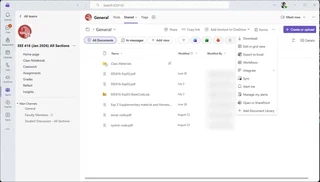
This can also be done from the web browser version of Teams.
2. Open Site contents
Once the Team site opens in SharePoint, select Site contents.
Depending on the SharePoint layout, Site contents may be visible in the site navigation or accessible through the Settings menu.
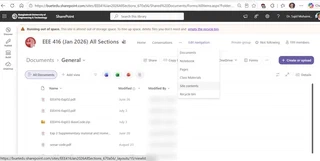
The Site contents page lists the document libraries and other resources associated with the Team.
3. Open Student Work → Submitted Files
From Site contents, locate and open the document library named Student Work.
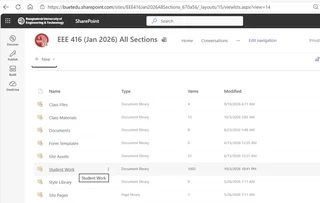
Inside Student Work, open Submitted Files.
The path is:
Site contents
    └── Student Work
        └── Submitted Files
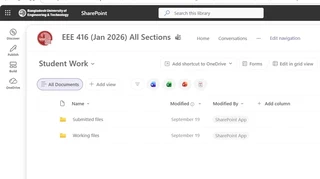
Inside Submitted Files, the folders are normally organized student by student:
Submitted Files\
├── 2100001 - Student Name\
├── 2100002 - Student Name\
├── 2100003 - Student Name\
└── ...
Each student directory contains folders corresponding to that student’s assignments.
4. Download the submissions
Select the Submitted Files folder and choose Download.
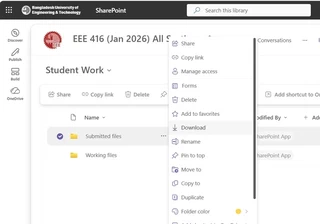
SharePoint will prepare the selected contents for download, normally as a compressed archive.
Save the archive and extract it to a convenient local folder.
For example:
F:\416-2026
After extraction, the top level may look like:
F:\416-2026\
├── 2100001 - Student Name\
├── 2100002 - Student Name\
├── 2100003 - Student Name\
└── ...
A particular student submission might look like:
2100001 - Student Name\
└── EEE 416 - Project Report and Presentation Sli\
    └── Version 1\
        ├── EEE416-Jan2026-B1-G04-Final-Presentation-v9.pptx
        ├── EEE416_B1-04_Final_Project_presentation.pdf
        ├── EEE416_B1-04_Final_Project_Report (2) (1).docx
        └── EEE416_B1-04_Final_Project_Report.pdf
This is the structure that the PowerShell script will reorganize.
5. Create the PowerShell script
Open Notepad, Visual Studio Code, or another plain-text editor.
Create a file named:
Organize-Teams-Assignments.ps1
For example, save it in the downloaded course folder:
F:\416-2026\Organize-Teams-Assignments.ps1
Paste the following script into the file:
<#
.SYNOPSIS
    Reorganize downloaded Microsoft Teams / SharePoint
    student submissions by assignment.

.DESCRIPTION
    Expected source structure:

        SourceRoot\
            2100001 - Student Name\
                Assignment A\
                    Version 1\
                        file1.pdf
                        file2.docx
                Assignment B\
                    Version 2\
                        file3.pptx

    Produces:

        SourceRoot\_ByAssignment\
            Assignment A\
                file1_2100001_v1.pdf
                file2_2100001_v1.docx
            Assignment B\
                file3_2100001_v2.pptx

    The student ID is taken from the first seven characters
    of the student folder name.

    The original files are copied, not moved.
#>

param(
    [string]$SourceRoot = "F:\416-2026",
    [string]$OutputRoot = "F:\416-2026\_ByAssignment"
)

$ErrorActionPreference = "Stop"


# ------------------------------------------------------------
# Generate a unique destination filename if necessary
# ------------------------------------------------------------
function Get-UniqueDestinationPath {
    param(
        [Parameter(Mandatory)]
        [string]$Path
    )

    if (-not (Test-Path -LiteralPath $Path)) {
        return $Path
    }

    $directory = [System.IO.Path]::GetDirectoryName($Path)
    $baseName  = [System.IO.Path]::GetFileNameWithoutExtension($Path)
    $extension = [System.IO.Path]::GetExtension($Path)

    $counter = 2

    do {
        $candidate = Join-Path $directory (
            "{0}_{1}{2}" -f $baseName, $counter, $extension
        )

        $counter++
    }
    while (Test-Path -LiteralPath $candidate)

    return $candidate
}


# ------------------------------------------------------------
# Check source directory
# ------------------------------------------------------------
if (-not (Test-Path -LiteralPath $SourceRoot -PathType Container)) {
    throw "Source folder does not exist: $SourceRoot"
}


# ------------------------------------------------------------
# Create output directory
# ------------------------------------------------------------
New-Item `
    -ItemType Directory `
    -Path $OutputRoot `
    -Force |
    Out-Null


Write-Host ""
Write-Host "Source : $SourceRoot"
Write-Host "Output : $OutputRoot"
Write-Host ""

$CopiedCount  = 0
$StudentCount = 0


# ------------------------------------------------------------
# Student directories are expected to begin with a
# seven-digit student ID.
#
# Example:
#
#   2100001 - Student Name
# ------------------------------------------------------------
$StudentFolders = Get-ChildItem `
    -LiteralPath $SourceRoot `
    -Directory |
    Where-Object {
        $_.FullName -ne $OutputRoot -and
        $_.Name -match '^\d{7}'
    }


foreach ($StudentFolder in $StudentFolders) {

    $StudentCount++

    $StudentID = $StudentFolder.Name.Substring(0, 7)

    Write-Host "Student: $StudentID  [$($StudentFolder.Name)]" `
        -ForegroundColor Cyan


    # --------------------------------------------------------
    # Immediate subdirectories are treated as assignments
    # --------------------------------------------------------
    $AssignmentFolders = Get-ChildItem `
        -LiteralPath $StudentFolder.FullName `
        -Directory


    foreach ($AssignmentFolder in $AssignmentFolders) {

        $AssignmentName = $AssignmentFolder.Name

        $DestinationAssignmentFolder = Join-Path `
            $OutputRoot `
            $AssignmentName

        New-Item `
            -ItemType Directory `
            -Path $DestinationAssignmentFolder `
            -Force |
            Out-Null


        # Find all submitted files within the assignment
        $Files = Get-ChildItem `
            -LiteralPath $AssignmentFolder.FullName `
            -File `
            -Recurse


        foreach ($File in $Files) {

            # Default to version 1
            $Version = 1

            $CurrentDirectory = $File.Directory

            # Walk upwards looking for "Version N"
            while (
                $null -ne $CurrentDirectory -and
                $CurrentDirectory.FullName.StartsWith(
                    $AssignmentFolder.FullName,
                    [System.StringComparison]::OrdinalIgnoreCase
                )
            ) {

                if ($CurrentDirectory.Name -match '(?i)^Version\s*(\d+)$') {
                    $Version = [int]$Matches[1]
                    break
                }

                if ($CurrentDirectory.Name -match '(?i)^Version$') {
                    $Version = 1
                    break
                }

                if ($CurrentDirectory.FullName -eq $AssignmentFolder.FullName) {
                    break
                }

                $CurrentDirectory = $CurrentDirectory.Parent
            }


            $OriginalBaseName =
                [System.IO.Path]::GetFileNameWithoutExtension($File.Name)

            $Extension = $File.Extension


            # New filename:
            #
            # OriginalName_StudentID_vN.ext
            #
            $NewFileName = "{0}_{1}_v{2}{3}" -f `
                $OriginalBaseName,
                $StudentID,
                $Version,
                $Extension


            $DestinationPath = Join-Path `
                $DestinationAssignmentFolder `
                $NewFileName


            # Prevent accidental overwriting
            $DestinationPath = Get-UniqueDestinationPath `
                -Path $DestinationPath


            Copy-Item `
                -LiteralPath $File.FullName `
                -Destination $DestinationPath


            $CopiedCount++


            Write-Host (
                "  {0} -> {1}" -f
                $File.Name,
                [System.IO.Path]::GetFileName($DestinationPath)
            )
        }
    }
}


Write-Host ""
Write-Host "============================================" `
    -ForegroundColor Green

Write-Host "Processing complete." `
    -ForegroundColor Green

Write-Host "Students processed : $StudentCount"
Write-Host "Files copied       : $CopiedCount"
Write-Host "Output folder      : $OutputRoot"

Write-Host "============================================" `
    -ForegroundColor Green
6. Set the source and output folders
Near the beginning of the script are these lines:
[string]$SourceRoot = "F:\416-2026",
[string]$OutputRoot = "F:\416-2026\_ByAssignment"
Change F:\416-2026 to the directory where you extracted your own Teams submissions.
For example:
[string]$SourceRoot = "D:\Courses\EEE416\Submissions",
[string]$OutputRoot = "D:\Courses\EEE416\Submissions\_ByAssignment"
The _ByAssignment folder does not need to exist beforehand. The script creates it automatically.
7. Open PowerShell in the folder
Open the downloaded submissions folder in File Explorer.
One convenient method is:
- Click the File Explorer address bar.
- Type
powershell. - Press Enter.
PowerShell will open with that folder as its current directory.
Alternatively, open PowerShell normally and change directories:
cd F:\416-2026
Confirm that the script is present:
dir
You should see:
Organize-Teams-Assignments.ps1
8. Run the script
Run:
.\Organize-Teams-Assignments.ps1
The script processes each student folder and displays its progress.
For example:
Student: 2100001  [2100001 - Student Name]

  EEE416-Jan2026-B1-G04-Final-Presentation-v9.pptx
    -> EEE416-Jan2026-B1-G04-Final-Presentation-v9_2100001_v1.pptx

  EEE416_B1-04_Final_Project_Report.pdf
    -> EEE416_B1-04_Final_Project_Report_2100001_v1.pdf
At the end, it displays a summary:
============================================
Processing complete.
Students processed : 52
Files copied       : 187
Output folder      : F:\416-2026\_ByAssignment
============================================

If PowerShell blocks the script
Some Windows systems may prevent .ps1 files from running because of the PowerShell execution policy.
To allow the script only for the current PowerShell session, run:
Set-ExecutionPolicy -Scope Process Bypass
Then run the script again:
.\Organize-Teams-Assignments.ps1
Closing that PowerShell window removes the temporary setting.
On computers managed by an organization, PowerShell execution policy may be centrally controlled. Follow your organization’s IT policy rather than changing a machine-wide execution policy.
The resulting folder structure
For this original submission:
2100001 - Student Name\
└── EEE 416 - Project Report and Presentation Sli\
    └── Version 1\
        ├── EEE416-Jan2026-B1-G04-Final-Presentation-v9.pptx
        ├── EEE416_B1-04_Final_Project_presentation.pdf
        ├── EEE416_B1-04_Final_Project_Report (2) (1).docx
        └── EEE416_B1-04_Final_Project_Report.pdf
the script creates:
_ByAssignment\
└── EEE 416 - Project Report and Presentation Sli\
    ├── EEE416-Jan2026-B1-G04-Final-Presentation-v9_2100001_v1.pptx
    ├── EEE416_B1-04_Final_Project_presentation_2100001_v1.pdf
    ├── EEE416_B1-04_Final_Project_Report (2) (1)_2100001_v1.docx
    └── EEE416_B1-04_Final_Project_Report_2100001_v1.pdf
A later submission version is labelled accordingly. For example:
2100002 - Student Name\
└── Project Report\
    └── Version 3\
        └── Final Report.pdf
becomes:
_ByAssignment\
└── Project Report\
    └── Final Report_2100002_v3.pdf
What the script does
Identifies the student
Only folders beginning with seven digits are treated as student folders:
2100001 - Student Name
The first seven characters become the student ID:
2100001
Creates one folder per assignment
The existing assignment folder names are reused automatically. There is no need to enter the assignment names separately.
Detects submission versions
Folders such as:
Version 1
Version 2
Version 3
are converted to filename suffixes:
_v1
_v2
_v3
If a file is not contained in a numbered Version folder, the script assumes version 1.
Keeps the original filename
The existing filename is retained. The student ID and submission version are inserted before the extension.
For example:
Project Report.pdf
becomes:
Project Report_2100001_v1.pdf
Keeps the original download unchanged
The script uses Copy-Item, not Move-Item.
The original SharePoint download therefore remains intact and can be retained as the untouched archive.
Prevents silent overwrites
If two files would produce exactly the same destination filename, the script does not silently replace the first file. It creates a unique filename by adding _2, _3, and so on.
Why reorganize submissions this way?
The original Teams/SharePoint directory structure effectively answers:
What did this particular student submit?
For marking and course administration, the more useful question is often:
What did everyone submit for this particular assignment?
An assignment-wise directory is convenient for:
- grading reports;
- reviewing presentations;
- distributing submissions among multiple evaluators;
- checking whether everyone submitted the required file type;
- batch-opening PDF or Word files;
- running automated processing over submissions;
- comparing different submission versions;
- archiving a completed course; and
- keeping the student ID attached to a file even when it is copied elsewhere.
Before deleting anything from SharePoint
Treat this workflow as an export and reorganization process, not as an immediate replacement for the original Teams/SharePoint records.
A sensible sequence is:
- Download the submissions.
- Keep the original extracted download.
- Run the PowerShell script.
- Check the number of students and copied files.
- Spot-check several assignments and submission versions.
- Make any archival or SharePoint cleanup decisions only after verifying the backup.
For important course records, keeping an untouched copy of the original download is a useful precaution.
Complete workflow
Microsoft Teams
      ↓
Open/View in SharePoint
      ↓
Site contents
      ↓
Student Work
      ↓
Submitted Files
      ↓
Download
      ↓
Extract archive
      ↓
Run PowerShell script
      ↓
_ByAssignment
      ↓
One folder per assignment
with Student ID + submission version
in each filename
The result is a simple assignment-oriented archive that is much easier to review, mark, distribute, and preserve than the student-oriented structure produced by the raw SharePoint download.